There is no BetPKR listing in the Apple App Store, so iPhone owners install it a different way. When you open BetPKR in Safari, a panel slides up with two buttons, APP and WEB-APP, and a link to keep using the browser. This article explains what each choice does and how to decide.
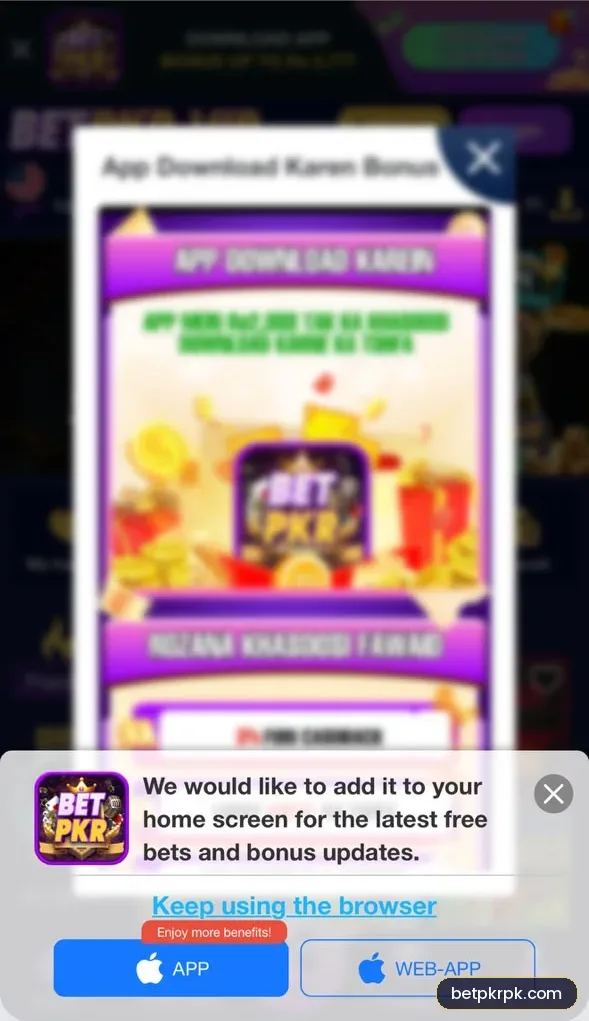
What the Panel Says
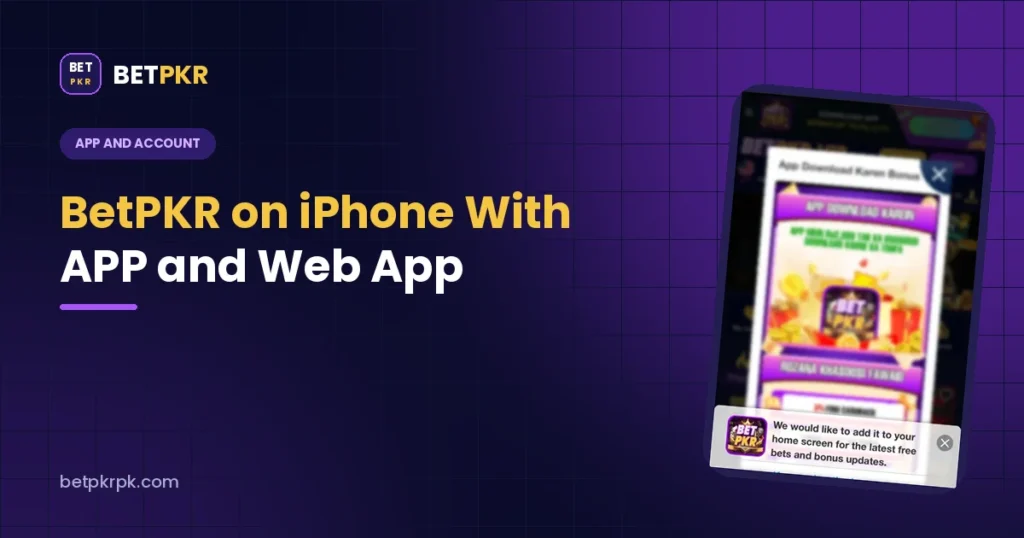
The message in the panel reads that BetPKR would like to add itself to your home screen for the latest free bets and bonus updates. Under the message there is an underlined link, Keep using the browser, and two blue outlined buttons with the Apple logo. The left button, APP, has a small red label on top that reads Enjoy more benefits. The right button is WEB-APP. A round close button in the corner hides the panel if you want to decide later.
APP Versus Web App
| Option | What it does | Best for |
|---|---|---|
| APP | Installs the full BetPKR app with its own icon | Players who want the app linked benefits |
| WEB-APP | Adds a home screen icon that opens the site full screen | Phones where the APP option will not install |
| Keep using the browser | Nothing is installed | Trying BetPKR before deciding |
The APP option is the one the platform links to extra benefits, and it is the natural choice if it installs smoothly on your iOS version. Some app installs outside the App Store rely on a signing profile that iOS asks you to trust in Settings, and those profiles can stop working after an update. WEB-APP avoids that problem completely because it is only a shortcut to the website, so it is the reliable fallback.
Install With the APP Button
- Open the official BetPKR link in Safari, not in a browser inside another app.
- Wait for the panel and tap APP.
- Follow each prompt on the screen. If iOS asks you to approve a profile, open Settings and approve it.
- Open the new BetPKR icon and log in with your username and password.
The Safari Fallback
If the panel does not appear, or both buttons fail, open the site in Safari, tap the Share icon at the bottom and choose Add to Home Screen. Give the icon a name you recognise and tap Add. The icon opens BetPKR full screen and keeps you signed in when Remember is ticked on the login page. It works on every recent iPhone and needs no settings change.
Keeping the iPhone Version Healthy
Whichever option you chose, a few habits keep it working. Leave enough free storage for Safari to cache pages, because a full phone makes web apps reload slowly. Keep iOS updated, but after a major update open BetPKR once and check that the icon still works. If you installed with the APP button and the icon suddenly shows an error, do not search the internet for a replacement profile. Delete the icon, open the official link in Safari and choose again from the panel.
Notifications are worth a thought too. The panel promises the latest free bets and bonus updates, and those alerts can be useful, but they are also designed to pull you back into the app. If you notice that every alert makes you open a game, switch them off in iPhone Settings and check Promotion on your own schedule instead.
Frequently Asked Questions
Is BetPKR in the App Store?
No. Use the APP or WEB-APP buttons from the BetPKR panel, or Add to Home Screen in Safari.
Which option gets the app download bonus?
The panel labels APP with Enjoy more benefits. Check the bonus card in Promotion for the exact condition.
The APP icon stopped opening. What now?
Delete it, open the site in Safari and choose WEB-APP or Add to Home Screen.
Read next BetPKR App Download BetPKR APK for Android
Opens the official BetPKR download page. Customer service is one tap away if you get stuck.